
Before You Start
Make sure you have Java 8 or higher installed on your computer. This tutorial will guide you through configuring Java security settings to run the JTME client.
Requirements
Open Java Control Panel
Search for Configure Java or Java Control Panel in the Windows search bar.
On Mac, go to System Preferences → Java .
If you can't find it, make sure Java is properly installed on your system.
Go to Security Tab
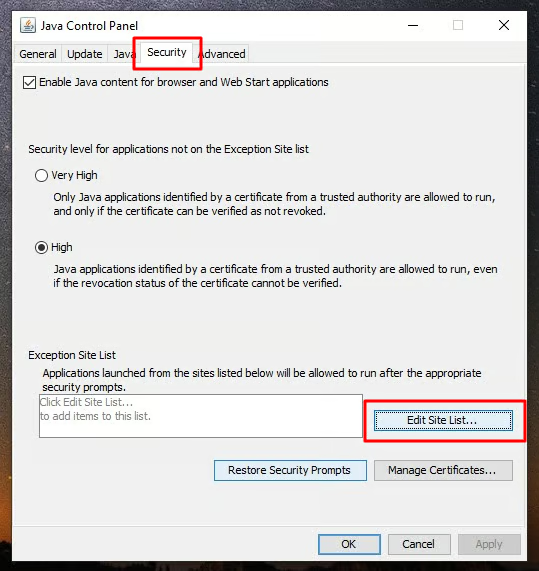
In the Java Control Panel, click on the "Security" tab.
Then click on "Edit Site List..." button at the bottom.
Add JTME to Exception List
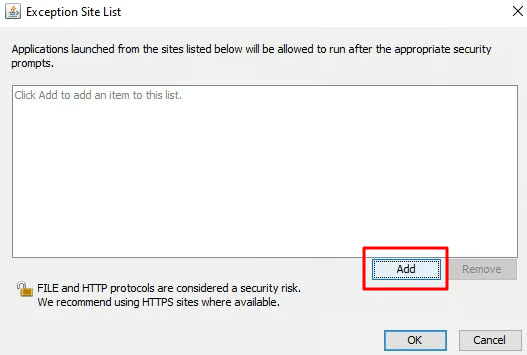
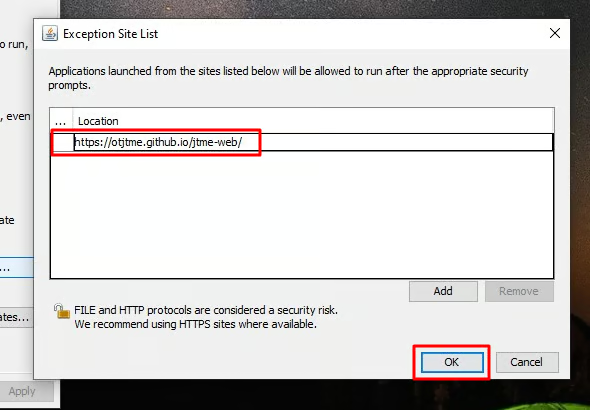
In the Exception Site List window, click the "Add" button.
Add the following URL to the list:
Click "OK" to save.
Download and Run JTME
Go to our Download page and download the JTME Big or JTME Small JNLP file.
Double-click the downloaded .jnlp file to run it.
Accept Security Warning
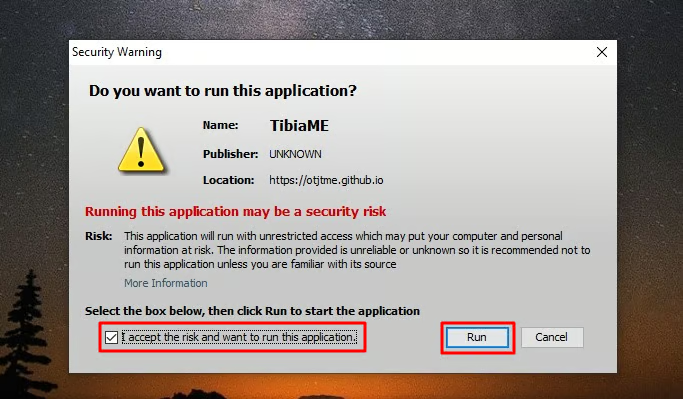
A security warning dialog will appear. Click "Accept" or "Continue" .
Then click "Run" to start the JTME client.
This is safe because you added the JTME site to your Java exception list.
Play JTME!
The JTME client will launch. Log in or create your account in World 200 .
Now you can play OT JTME on your PC!
Configuration Complete!
You have successfully configured Java to run JTME on your PC. Have fun playing!
Back to Downloads